Today, we are going to discuss the "How to link part property information to a drawing in SolidWorksHere is a note about "The
Linking parts and drawings is very important in 3D CADI think that by reducing the number of items to be typed as much as possible, design errors will be reduced. I believe that reducing the number of items to be typed as much as possible will reduce design errors, so today I will make a note of how to link the property contents and attributes of a part to the text in the drawing.
Procedure for linking part property information to drawings
1. Create properties with SolidWorks Property Builder.
Open the SolidWorks Property Builder. This is where you create properties and link their contents into the drawing. There are three types of properties
- ******.asmprp: Assembly Properties
- ******.drwprp: drawing properties
- *******.prtprp: Properties of the part
In this case, the method will be to link the items in the properties of this part to the text in the drawing. (Assembly properties can be linked in the same way by doing the same thing.)
If you want to link a property that already exists, you must still open the Property Builder and check the name of the content to be linked.
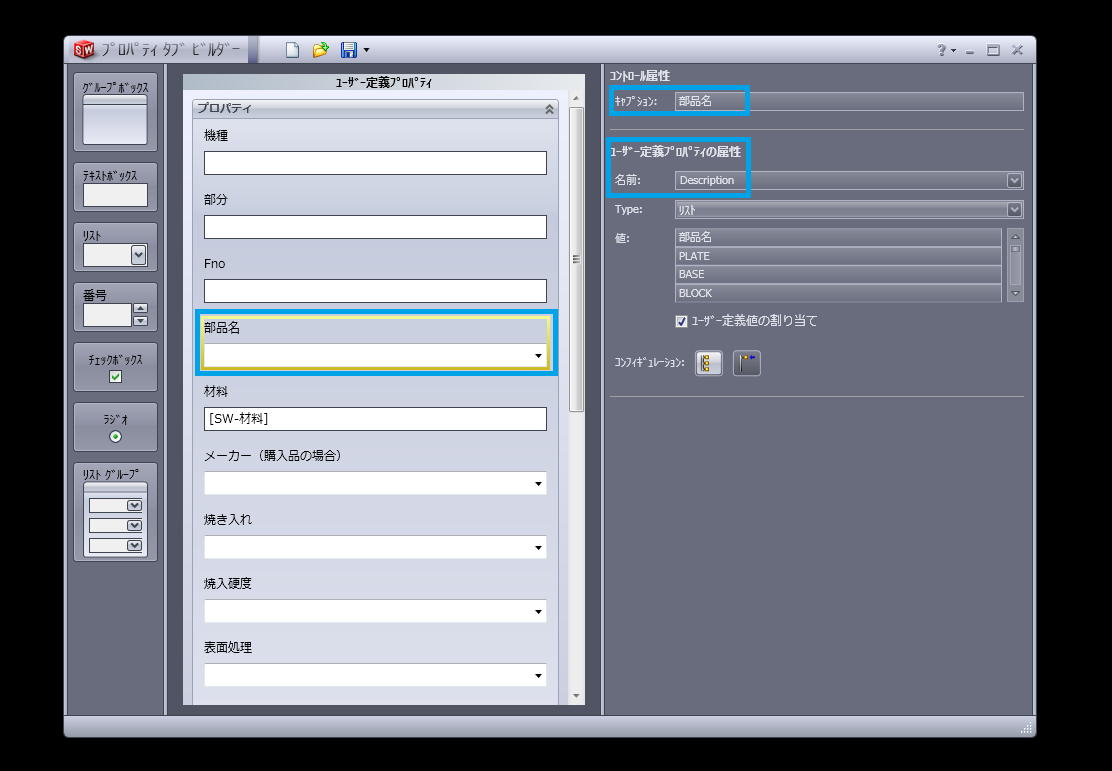
Where to care in the property builder,
- Caption for the control attribute (this is the name in the property)
- Attribute name of user-defined property← Please note the name here
Here you can add new properties or check existing properties, then save and close.
2. Apply its properties to the model
Next, apply the properties you just created to the model.
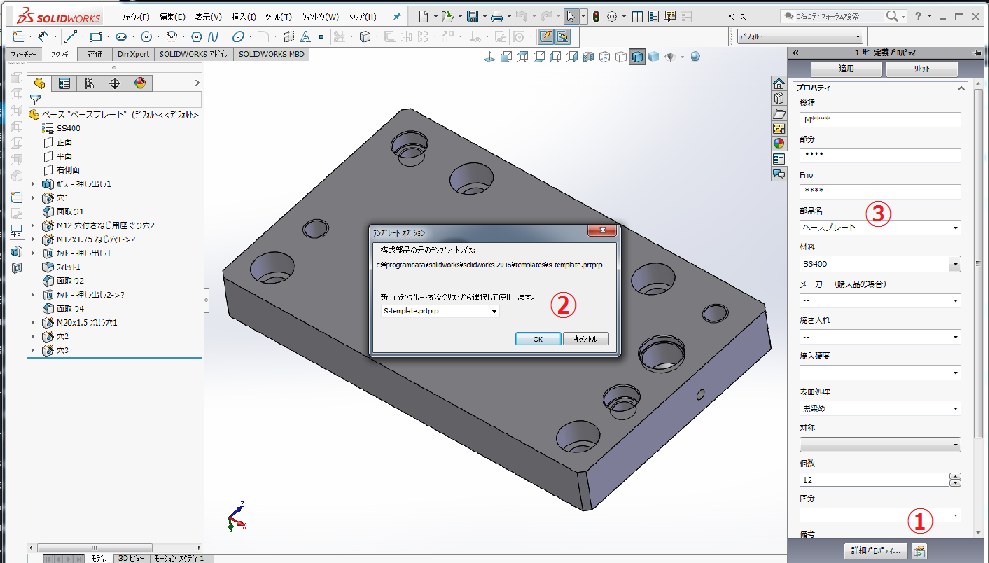
- Read the properties. (Images ① to ③)
- Insert property
- Save the part.
3. Open the drawing, create text and link it.
Next, you can either bring up the drawing from the part, or open the drawing and load the part, but include the following note text in the drawing
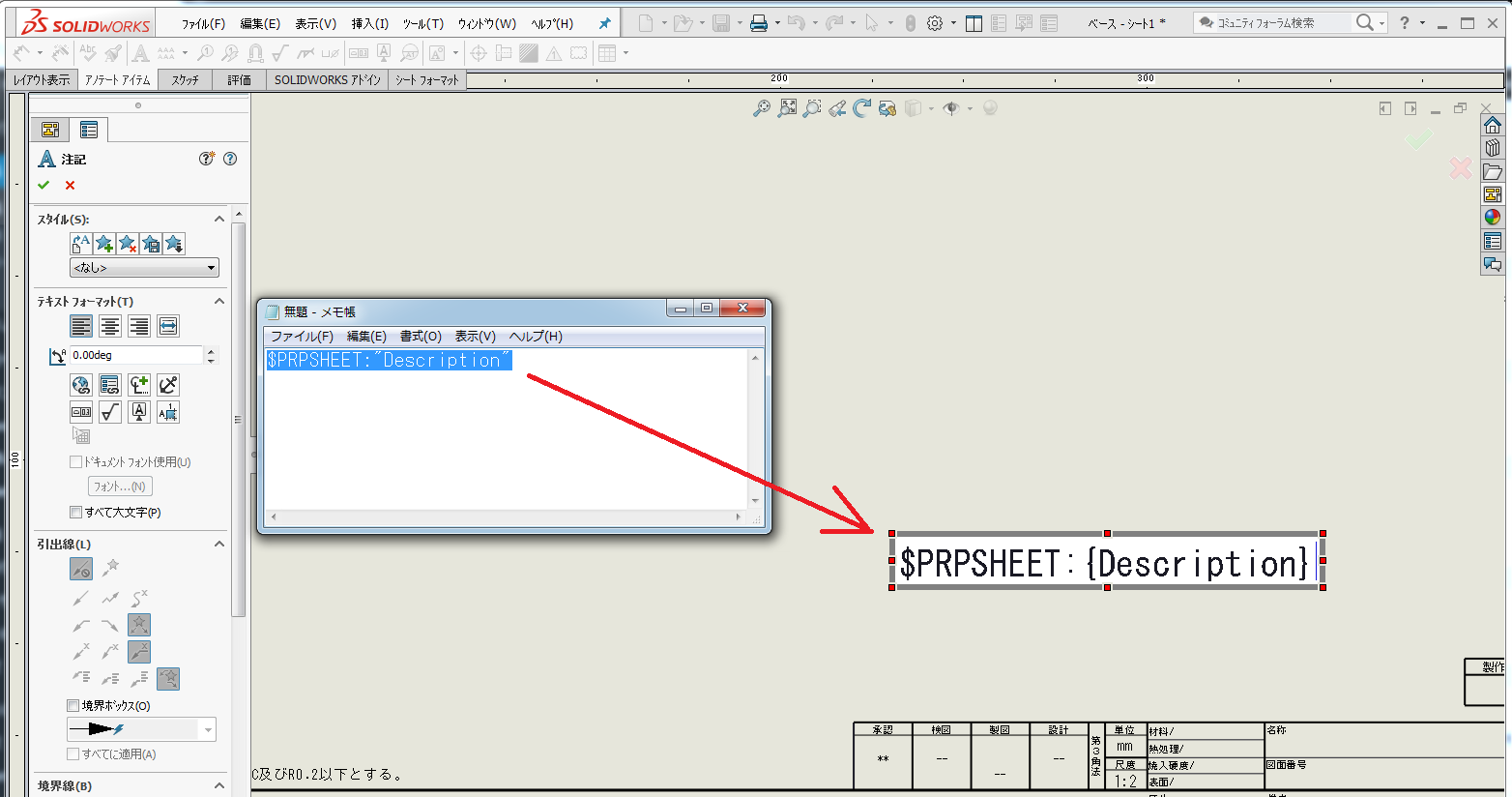
This can be done either on the sheet side or on the drawing model side. The text to be included is
The "Description" here should match the "Description" in the property you just wrote.Also, the text entered (pasted) as $PRPSHEET: "Description" will change to $PRPSHEET:{Description}, which is fine. Note that if you type $PRPSHEET:{Description} first, the link will not work.
Put the model in and see for yourself.
Put the model in and see what happens. (The following are successful)
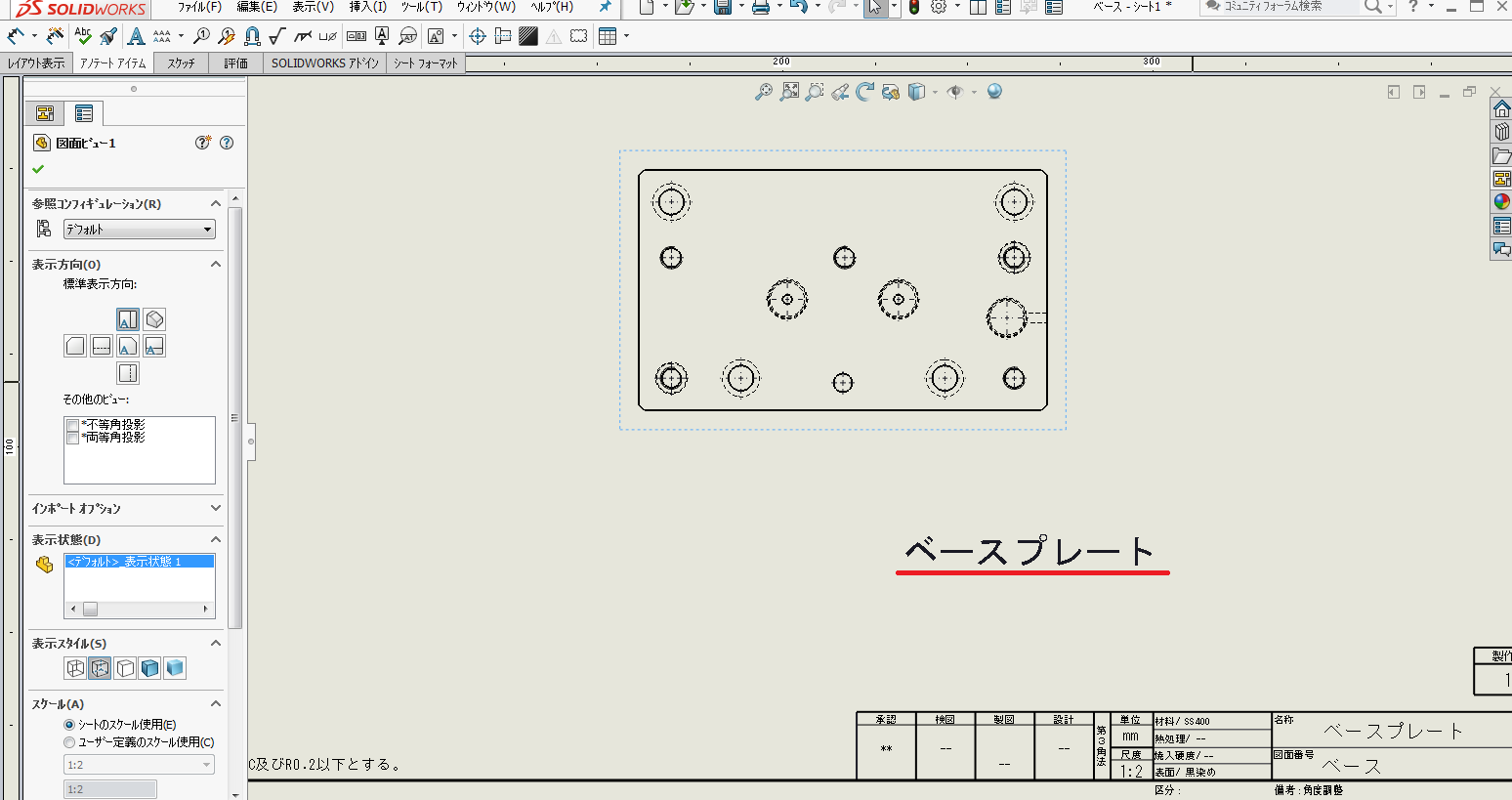
Supplemental] If you want to edit existing text
In this case, the method was to link the new content in the drawing, but you may want to change the link destination of an existing text link that is already there, but you cannot double-click on that text to edit it,
You can rewrite the property here. For example, if you open the default figure frame in SolidWorks, you will already find the linked texts, so you can copy and paste them and rename the properties using "Edit Text in Window".
Finally.
The method described in this memo is useful for linking various properties, so please be sure to use it. Once you have linked these properties to create a great drawing frame, it is a good idea to register it in both the sheet format save and the drawing template.
That's it.
RELATED:Solidworks